note to user: for blender 2.62, replace 'faces' with 'polygons' - Most of this post contains information that is of little relevance to Blender 2.6x
Here is a link to updated version of this:
update for 2.6x
below this point is outdated information
say you have just painted vertex colours in Vertex Paint mode.
>>> for i in bpy.context.active_object.data.vertex_colors[0].data:
      # for every face print, color4 only useful in a Quad mesh.
...   print(i.color1, i.color2, i.color3, i.color4)
will print layer 0 of Vertex Colors for that mesh object. This property is read/write
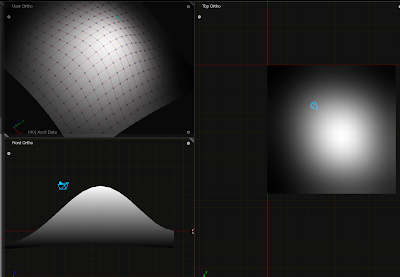
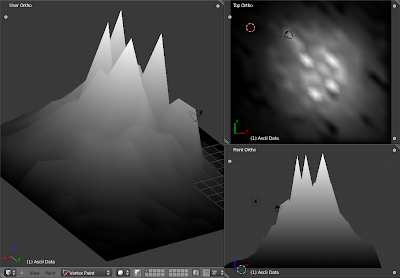
so you can manipulate the data according to (for example) their Z value.
# set everything to a midtone rgb Color((.5, .5, .5))
# modify vertex painted 'Vertex Colors' palette
import bpy
import random
from mathutils import Color

for i in bpy.context.active_object.data.vertex_colors[0].data:

    i.color1 = Color((0.5, 0.5, 0.5))
    i.color2 = Color((0.5, 0.5, 0.5))
    i.color3 = Color((0.5, 0.5, 0.5))
    i.color4 = Color((0.5, 0.5, 0.5))
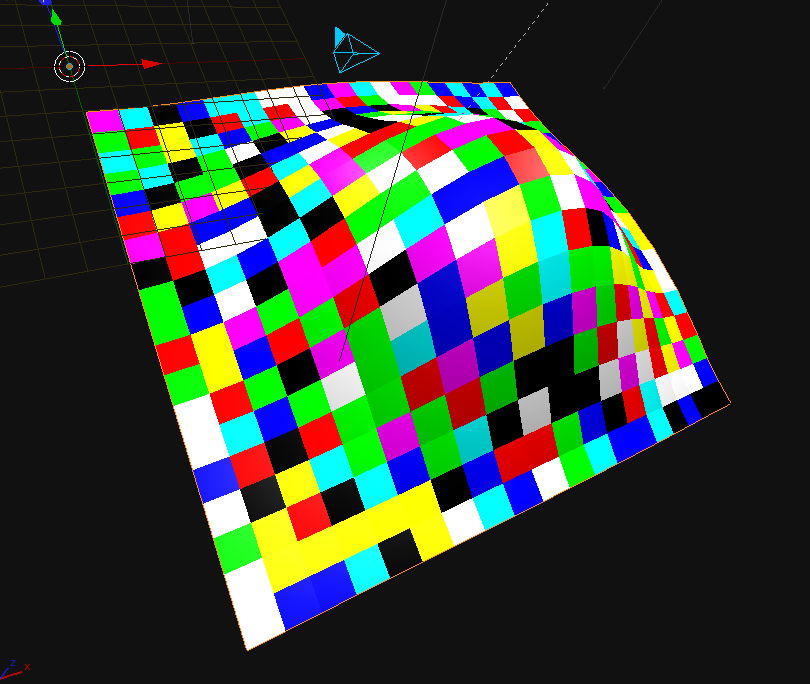
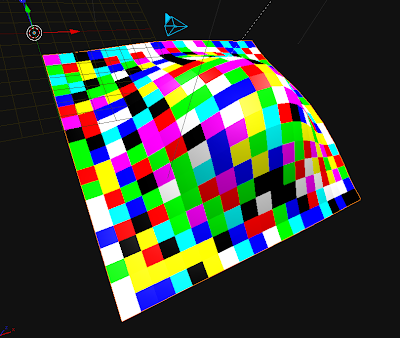
this makes all colours utterly random ( super ugly! )
# modify vertex painted 'Vertex Colors' palette
import bpy
import random
from mathutils import Color

for i in bpy.context.active_object.data.vertex_colors[0].data:

    r = random.randint(0,1)
    g = random.randint(0,1)
    b = random.randint(0,1)
    VertCol = (r,g,b)

    i.color1 = Color((VertCol))
    i.color2 = Color((VertCol))
    i.color3 = Color((VertCol))
    i.color4 = Color((VertCol))
this checks their Z height and makes them lighter at heigher Z-values. First it checks the highest Z value and lowest Z value in the coordinate list for those Faces, then adjusts the Height-to-VertexColor function accordingly
This is much longer because it includes the remap function, which i'm sure could be done with one function call, like in actionscript or processing.
EDIT: for an updated version of the remap function used below visit remap-with-input-error-checking
# modify vertex painted 'Vertex Colors' palette
import bpy
import random
from mathutils import Color, Vector

def remap(current, lower_old, upper_old, lower_new, upper_new):

    # error spreads must return difference between the values
    old_tup = lower_old, upper_old
    new_tup = lower_new, upper_new

    # reusing a nicely coded Vector math utility :)
    old_min = Vector((0.0, 0.0, lower_old))
    old_max = Vector((0.0, 0.0, upper_old))
    new_min = Vector((0.0, 0.0, lower_new))
    new_max = Vector((0.0, 0.0, upper_new))

    # fast and saves room!
    spread_old = (old_max-old_min).length
    spread_new = (new_max-new_min).length

    factor_remap = spread_new / spread_old

    current_vector = Vector((0.0, 0.0, current))
    remap_temp =(current_vector-old_min).length

    remapped = (remap_temp * factor_remap) + new_min[2]

    # i think color values are clamped by blender, but it is
    # good practice to not take this for granted in all cases.
    if remapped < lower_new: return lower_new
    if remapped > upper_new: return upper_new

    # value seems alright!
    return remapped


# Find upper and lower z values.
# there are many ways to skin this cat, but i'm going to be lazy
z_list = []
for i in bpy.context.active_object.data.vertices:
    z_list.append(i.co.z)

z_list = sorted(z_list)
print('lower z',z_list[0])
print('upper z',z_list[len(z_list)-1])

lower_old = z_list[0]
upper_old = z_list[len(z_list)-1]
lower_new = 0.0
upper_new = 1.0

vertlist = bpy.context.active_object.data.vertices
facelist = bpy.context.active_object.data.faces
colorlist = bpy.context.active_object.data.vertex_colors[0].data

for i in range(len(colorlist)):

    remapped = []
    for element in range(4):
        vertnum1 = facelist[i].vertices[element]
        remap_1 = vertlist[vertnum1].co.z
        remap_1 = remap(remap_1, lower_old, upper_old, lower_new, upper_new)
        remapped.append(Color((remap_1,remap_1,remap_1)))

    colorlist[i].color1 = remapped[0]
    colorlist[i].color2 = remapped[1]
    colorlist[i].color3 = remapped[2]
    colorlist[i].color4 = remapped[3]